
Introduction to Multi-Monitor Setups
The way we work, play, and consume content has evolved dramatically in the last decade. Gone are the days when a single monitor was enough to handle all our computing needs. Today, professionals, gamers, and even casual users are leaning toward multi-monitor setups to boost productivity, enhance their workflow, and create immersive experiences.
But why the sudden popularity of multiple screens? The answer lies in the sheer convenience and efficiency that comes with having more digital real estate. Imagine being able to run a spreadsheet on one screen, join a Zoom meeting on another, and browse research material on a third—all without constantly minimising and maximising windows. That’s the magic of multi-monitor setups.
Many people assume that setting up multiple monitors is complicated, expensive, or reserved only for tech enthusiasts. The truth is, anyone can add multiple monitors to their laptop or PC with the right knowledge, tools, and a little bit of patience. You don’t need to be a computer wizard, nor do you always need to invest in high-end hardware. In fact, with the right cables, adapters, or docking stations, even an average laptop can support more than one screen. View the range of monitors, mounts and workstations at Comms Express.
Why Multi-Monitor Setups Are Becoming Popular
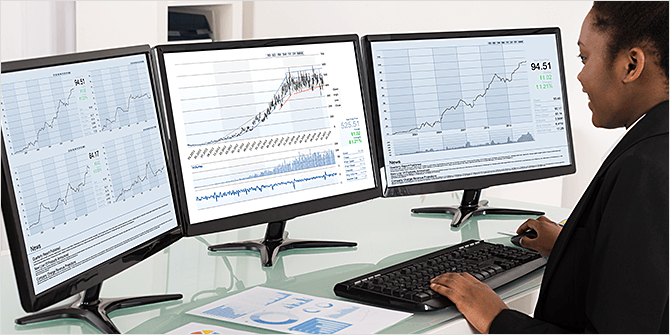
Multi-monitor setups are no longer limited to financial analysts, programmers, or hardcore gamers. Even regular home users are realising the advantages of having more than one display. Remote workers love them because they make multitasking seamless. Graphic designers use them to extend their digital canvas. Video editors rely on them for previewing content on one screen while editing on another. And gamers? Well, nothing beats the immersive thrill of a triple-monitor racing or flight simulator.
Another reason for their growing popularity is affordability. Monitors have become cheaper, slimmer, and more energy-efficient in recent years. Combine that with the fact that most modern laptops and desktops now come with multiple video output options, and suddenly, adding a second or third screen doesn’t sound so far-fetched.
Benefits of Using Multiple Screens
Let’s get into the real benefits:
- Increased Productivity: Studies have shown that dual monitors can boost productivity by over 40%. Having multiple screens allows you to avoid constantly switching between tabs and applications.
- Better Organisation: Keep your work documents open on one display while using another for communication tools like Slack, Teams, or email.
- Enhanced Creativity: Artists, designers, and content creators thrive with extra space to organise their tools and previews.
- Seamless Multitasking: Whether you’re coding, streaming, or attending online classes, multitasking becomes far easier.
- Immersive Entertainment: Watching movies on one screen while browsing the web on another makes your leisure time more enjoyable.
Common Myths About Multi-Monitor Configurations
Despite the clear advantages, a few misconceptions prevent people from exploring multi-monitor setups. Let’s bust them:
- “I need a powerful gaming PC for multiple monitors.” Not true—most modern laptops and budget desktops support at least two displays.
- “Multiple monitors will slow down my system.” Unless you’re running demanding 3D games across all screens, extra monitors barely affect performance.
- “Setup is too complicated.” If you can plug in a phone charger, you can connect a monitor. The configuration is often just a few clicks in your display settings.
The bottom line? Multi-monitor setups aren’t just for tech-savvy people. They’re for anyone who wants to make their digital life easier, more organised, and more productive.
Checking Your Laptop or PC’s Compatibility
Before you rush out to buy extra screens, it’s essential to check if your laptop or PC can actually handle multiple monitors. While most modern systems are designed with this in mind, there are still a few key things you need to consider.
Understanding Your Graphics Card Capabilities
The graphics card (GPU) is the brain behind your visual output. Every GPU has a limit to how many displays it can support. Integrated graphics, like Intel UHD or AMD Vega chips, typically support at least two screens. Dedicated GPUs, like those from NVIDIA or AMD Radeon, often support three to six monitors, depending on the model.
To check your GPU’s capabilities:
- On Windows, open the “Device Manager” and look under “Display adapters.” Then, search your GPU model online to see its supported displays.
- On macOS, click the Apple logo → “About This Mac” → “Displays.” You’ll see how many monitors your Mac can handle.
If your system has both integrated and dedicated graphics, you may need to adjust BIOS settings or GPU software to enable multiple displays.
Checking Available Ports (HDMI, DisplayPort, USB-C, VGA, etc.)
The physical ports on your device play a big role in determining how many monitors you can connect. Here are the most common ones:
- HDMI: Standard on most laptops and TVs; supports both video and audio.
- DisplayPort: Preferred for high refresh rates and gaming setups.
- USB-C/Thunderbolt: Found on newer laptops, capable of driving multiple 4K monitors.
- VGA: An older analogue option; still works, but not ideal for modern high-resolution displays.
- Mini DisplayPort: A smaller version of DisplayPort, common on older MacBooks and Surface devices.
Count how many video outputs you have. If your laptop has only one HDMI port, you’ll need an adapter or docking station to connect more than one monitor.
How to Check Your System’s Maximum Supported Displays
Not all systems can handle unlimited monitors. For example, many budget laptops max out at two displays (the built-in screen + one external).
To check this:
- On Windows, right-click on the desktop → “Display settings.” Try detecting additional displays. If the system won’t allow it, you’ve hit your limit.
- On Mac, head to “System Preferences” → “Displays.” Try adding extra screens.
If you discover your system can’t natively handle more screens, don’t worry—there are workarounds, such as USB-to-HDMI adapters or external GPU enclosures.
Choosing the Right Monitors for Your Setup
Now that you know your system’s capabilities, it’s time to pick the right monitors. Not all displays are created equal, and the wrong choice could hurt your productivity or create unnecessary headaches.
Matching Monitor Sizes and Resolutions
A common mistake beginners make is mixing monitors with wildly different sizes and resolutions. While technically possible, it often leads to mismatched scaling, blurry text, and awkward cursor movement between screens.
Ideally, you should:
- Match resolution: If your main monitor is 1080p, try to use another 1080p screen for a smoother experience.
- Consider size: Dual 24-inch monitors work beautifully for most people. Anything larger may require more desk space.
- Mixing resolutions: If you do mix (say, a 1080p and 4K display), place the higher-resolution monitor as your primary screen.
Refresh Rate and Response Time Considerations
For everyday tasks, a standard 60Hz refresh rate is more than enough. However, if you’re a gamer or video editor, you’ll want monitors with higher refresh rates (120Hz, 144Hz, or 240Hz) for smoother visuals.
Response time also matters for gaming. A 1ms to 5ms response time is ideal to avoid ghosting in fast-paced games. For office work, though, even 10ms is perfectly fine.
Curved vs. Flat Monitors – Which is Better for Productivity?
Curved monitors are becoming increasingly popular, and for good reason. They create a more immersive viewing experience, reduce distortion at the edges, and are easier on the eyes when working with wide screens.
- Curved Monitors: Great for immersive setups, especially gaming and creative work.
- Flat Monitors: More practical for traditional office setups where you may want to mount or stack multiple screens.
If you’re only using two monitors, flat screens are usually the most straightforward choice. If you plan a triple-monitor gaming rig, curved monitors can really enhance the experience.
Essential Cables and Adapters You’ll Need
Having the right monitors is one thing, but without the correct cables and adapters, your multi-monitor dreams will quickly fall apart.
HDMI, DisplayPort, and USB-C Explained
- HDMI (High-Definition Multimedia Interface): The most common cable, which supports both video and audio. Standard HDMI handles up to 4K at 60Hz.
- DisplayPort: Often better than HDMI for higher resolutions and refresh rates. Ideal for gamers.
- USB-C/Thunderbolt 3 & 4: These modern connectors can handle video, audio, data, and even power delivery. Many laptops now rely on USB-C for multiple monitor connections.
Using Docking Stations and Hubs for More Ports
If your laptop only has a single video port, don’t worry—docking stations and hubs can save the day.
- USB-C Docks: Allow you to connect multiple HDMI or DisplayPort monitors through one USB-C port.
- Thunderbolt Docks: Even more powerful, capable of driving two or more 4K displays simultaneously.
- Basic USB Hubs: Can add ports, but make sure they support video output (not all do).
When to Use Adapters (HDMI to VGA, USB-C to HDMI, etc.)
Sometimes, your monitor and laptop won’t have matching ports. That’s where adapters come in:
- HDMI to VGA: Useful if you’re connecting to an older projector or monitor.
- USB-C to HDMI/DisplayPort: Common for modern ultrabooks and MacBooks.
- Mini DisplayPort to HDMI: Handy for older Microsoft Surface devices and Macs.
A word of caution: Always buy active adapters (not cheap passive ones) if you’re converting between different signal types. Otherwise, you may end up with a black screen.
Step-by-Step Guide to Connecting Multiple Monitors
Now that you’ve got the hardware sorted, let’s walk through how to actually connect and configure multiple monitors.
Connecting Dual Monitors to a Laptop
- Check Ports: Identify which ports are available on your laptop.
- Connect First Monitor: Use HDMI, USB-C, or DisplayPort to connect the first screen.
- Connect Second Monitor: If you have another port, plug in the second screen. Otherwise, use a docking station or adapter.
- Configure in Settings: On Windows, go to “Display Settings” → “Multiple Displays” and select “Extend.” On Mac, go to “System Preferences” → “Displays.”
Setting Up Three or More Monitors on a Desktop
Desktops are usually easier to expand since most graphics cards have multiple outputs.
- Check GPU Outputs: Your GPU may have 2–4 HDMI or DisplayPort outputs.
- Plug Monitors In: Connect each monitor to a separate port.
- Configure Display Layout: In Windows or macOS, drag and drop monitor icons to match your physical setup.
- Fine-Tune Resolution: Make sure each monitor is running at its optimal resolution.
Common Issues and How to Fix Them During Setup
- Monitor Not Detected: Restart your computer or update your GPU drivers.
- Wrong Resolution: Adjust manually in display settings.
- Black Screen on One Monitor: Try swapping cables or using a different port.
- Laggy Performance: Lower the resolution or close background applications.
With the low cost of today’s monitors, having multiple screens is more affordable than ever. However, figuring out how to add them to your computer or laptop, including what connections or ports are compatible, can be difficult. In addition, opening a PC or laptop to add an internal display card can be complicated and expensive. A quick and easy solution is a video cable/adapter or docking station.
Configuring Display Settings in Windows and macOS
Connecting the monitors is only half the battle. To get the most out of your setup, you’ll need to configure your display settings so the monitors work exactly the way you want them to. Both Windows and macOS make this process fairly simple, but each has its own steps and quirks.
Extending vs. Duplicating Displays
Once your monitors are plugged in, you’ll have two main choices:
- Duplicate (Mirror) Display: Shows the same screen on all monitors. Useful for presentations or teaching where multiple people need to see the same content.
- Extend Display: Creates one large digital workspace by spreading your desktop across multiple screens. This is the option most people choose for productivity and multitasking.
In Windows:
- Right-click on the desktop and select “Display settings.”
- Scroll down to “Multiple Displays.”
- Choose either “Duplicate” or “Extend.”
In macOS:
- Open “System Preferences” → “Displays.”
- Go to the “Arrangement” tab.
- Check or uncheck “Mirror Displays” to switch modes.
Adjusting Screen Resolution and Orientation
Sometimes your monitor doesn’t look as crisp as it should, or it may be showing in portrait mode when you need landscape.
- Resolution: Each monitor has a “native resolution” where it looks sharpest. For example, a 1080p monitor should be set at 1920×1080. If your text looks blurry, check that you’re using the native resolution.
- Orientation: If you want to rotate a monitor vertically (great for coders or writers), you’ll need to change the orientation.
In Windows:
- Go to Display Settings → Select the monitor → Under “Display orientation,” choose landscape or portrait.
In macOS:
- In “System Preferences” → “Displays,” hold Option and click “Scaled” to reveal more resolution options, then adjust orientation if supported.
Customising Display Order for Workflow Efficiency
Nothing’s more frustrating than moving your mouse to the right, only for it to appear on the left monitor. That’s why customising display order is crucial.
In Windows:
- Under “Display Settings,” drag and drop monitor icons to match their actual physical layout on your desk.
In macOS:
- In the “Arrangement” tab, simply click and drag the blue monitor boxes to reflect your physical setup.
Pro tip: Place your primary monitor in the center and set it as the “Main Display.” This way, apps and the taskbar/dock will default to your main screen while still allowing flexibility across others.
Optimising Your Multi-Monitor Workspace
Adding extra monitors is about more than just plugging them in. To get maximum comfort and productivity, you’ll need to optimise your workspace setup.
Ergonomic Positioning of Monitors
Poorly positioned monitors can lead to neck strain, eye fatigue, and back pain. Follow these ergonomic tips:
- Eye Level: The top of your monitor should be at or slightly below eye level.
- Distance: Keep monitors about an arm’s length away from your eyes.
- Angle: Tilt monitors slightly upward (10–20 degrees) for a natural view.
- Alignment: If you use multiple screens, keep them aligned horizontally to avoid neck twisting.
For dual setups, you can either:
- Place monitors side by side at a slight inward angle.
- Position one directly in front of you (primary) and the other slightly off to the side.
Best Desk Layouts for Productivity
Desk layout plays a big role in how well your multi-monitor setup works:
- Small Desk Setup: A vertical dual-monitor mount saves space.
- Medium Desk Setup: Place two 24–27″ monitors side by side with a keyboard centered.
- Large Desk Setup: Triple monitor setups work best in a slight arc for a wraparound effect.
Using a monitor arm instead of the standard stands is a game-changer. Not only does it free up desk space, but it also allows you to adjust monitor height and angle with ease.
Tips for Reducing Eye Strain
Spending hours staring at multiple screens can be taxing. Here are some simple tricks to keep your eyes healthy:
- Follow the 20-20-20 rule: Every 20 minutes, look at something 20 feet away for 20 seconds.
- Use blue light filters: Most monitors and operating systems now offer “Night Mode” or “Blue Light Shift.”
- Adjust brightness and contrast: Match your monitor brightness to your room’s lighting.
- Anti-glare screens: If you work in a bright room, consider adding anti-glare filters.
Remember, more monitors doesn’t have to mean more eye strain—if you set them up correctly.
Useful Software Tools for Multi-Monitor Management
Managing multiple monitors goes beyond physical setup. With the right software, you can supercharge your workflow and make navigating between screens much smoother.
Windows Built-in Display Management Tools
Windows has several built-in shortcuts that make multi-monitor setups easier:
- Win + P: Quickly switch between “PC screen only,” “Duplicate,” “Extend,” and “Second screen only.”
- Win + Arrow keys: Snap windows to the left, right, or between monitors.
- Win + Shift + Left/Right Arrow: Instantly move windows between monitors.
These shortcuts alone can save you tons of time every day.
Third-Party Tools Like DisplayFusion and UltraMon
If you want more advanced features, third-party tools are worth exploring:
- DisplayFusion: Lets you create custom hotkeys, manage wallpapers across multiple monitors, and even extend taskbars to each screen.
- UltraMon: Great for adding extra taskbars, customising screen settings, and creating shortcuts for moving applications between screens.
- Actual Multiple Monitors: Offers advanced window snapping, customizable hotkeys, and desktop management features.
Using Virtual Desktops for Better Organisation
If you don’t want to clutter your screens with too many apps, virtual desktops are a great solution.
- Windows 11 & 10: Press Win + Tab → “New Desktop.” You can switch between desktops with Ctrl + Win + Left/Right Arrow.
- macOS Mission Control: Swipe up with three fingers or press F3 to manage virtual desktops.
Virtual desktops + multiple monitors = ultimate productivity.
Multi-Monitor Setups for Gaming
Multi-monitor setups aren’t just for productivity—they’re also incredibly popular in gaming. If you’ve ever seen a racing simulator or flight sim with three monitors wrapping around, you know how immersive it can be. Check out the Best Gaming Monitors at Comms Express.
Setting Up NVIDIA Surround or AMD Eyefinity
Both NVIDIA and AMD offer technologies to merge multiple monitors into one seamless gaming display:
- NVIDIA Surround: Allows you to combine up to three monitors into a single ultra-wide resolution.
- AMD Eyefinity: Similar to NVIDIA’s version, supporting up to six monitors depending on the GPU.
Setup usually involves:
- Opening the GPU control panel.
- Selecting the monitors you want to group.
- Configuring them into one unified resolution.
Choosing the Right Gaming Monitors
For gaming, monitor choice makes a huge difference:
- Refresh Rate: 144Hz or higher is best for smooth gameplay.
- Response Time: 1–5ms reduces motion blur.
- Bezel Size: Thinner bezels make multi-monitor gaming more immersive.
- G-Sync/FreeSync: Prevents screen tearing when using NVIDIA or AMD GPUs.
Most gamers opt for three 24–27 inch monitors to create a panoramic field of view.
Performance Considerations When Gaming Across Multiple Screens
Running games across three monitors is demanding. Your GPU has to render more pixels—sometimes triple the workload of a single screen.
To optimise performance:
- Lower graphic settings slightly.
- Ensure your GPU has enough VRAM (8GB or more recommended).
- Use DisplayPort instead of HDMI when possible for higher refresh rates.
For less powerful PCs, using a second monitor for streaming, Discord, or guides while gaming on the main screen is still a fantastic way to level up your experience.
Troubleshooting Common Multi-Monitor Problems
Even with the best setup, issues can pop up. Luckily, most problems are easy to fix once you know where to look.
Monitor Not Detected Issues
If your system doesn’t recognise a connected monitor:
- Double-check the cable and port.
- Try a different cable (sometimes the cable is the culprit).
- Update your GPU drivers.
- On Windows, go to Display Settings → “Detect” under Multiple Displays.
Flickering or Resolution Problems
Common causes:
- Using an adapter that doesn’t support the resolution or refresh rate.
- Faulty or low-quality cables.
- Outdated drivers.
Fixes:
- Use certified HDMI/DisplayPort cables.
- Manually set the resolution in display settings.
- Reboot after making changes.
Fixing Lag and Performance Drops
If your PC slows down after adding extra monitors:
- Check if your GPU is overheating.
- Lower secondary monitor refresh rates.
- Close background apps.
- Upgrade your GPU if you plan to run heavy workloads across all displays.
Pro tip: Integrated graphics and older laptops often struggle with more than two monitors. If you face repeated lag, consider using a docking station with built-in graphics processing or investing in an external GPU (eGPU).
Budget-Friendly Alternatives for Extra Screens
Not everyone can afford to buy two or three high-end monitors. The good news is, there are budget-friendly alternatives to expand your screen real estate without spending a fortune.
Using Tablets as Secondary Displays
If you own a tablet, you already have an extra screen sitting around. With the right apps, you can turn it into a functional secondary monitor:
- Duet Display (iOS/Android): Lets you use your tablet as a second screen via USB or Wi-Fi.
- Splashtop Wired XDisplay: A wired option for stable performance.
- iPad Sidecar (Mac only): Built into macOS, allowing you to extend your desktop to an iPad seamlessly.
While tablets won’t replace a full monitor, they’re fantastic for tasks like monitoring chats, keeping reference notes open, or controlling music.
Portable USB Monitors
Portable monitors are lightweight, slim displays that connect via USB-C or HDMI. They’re ideal for people who travel frequently or work in different locations.
- Prices start as low as $100–150 for a decent 15.6-inch 1080p display.
- Many come with built-in stands or foldable cases for portability.
- Some even have touch functionality, making them useful for presentations.
For students, freelancers, or digital nomads, portable monitors provide the perfect balance between affordability and convenience.
Wireless Display Options
If cables and adapters aren’t your thing, you can use wireless display solutions:
- Miracast (Windows): Built-in wireless projection feature.
- Apple AirPlay: Lets you mirror or extend your MacBook screen to an Apple TV or AirPlay-compatible device.
- Google Chromecast: With third-party apps, you can extend your desktop to a TV.
Wireless options aren’t ideal for gaming or heavy editing due to latency, but they work great for office tasks, media consumption, or light multitasking.
Best Practices for Productivity with Multiple Monitors
Just because you have more monitors doesn’t mean you’ll instantly be more productive. Without a plan, extra screens can actually lead to distractions and clutter. Here’s how to make the most of them.
Keyboard Shortcuts for Easier Navigation
Learning a few simple shortcuts can make your workflow seamless:
- Windows Shortcuts:
- Win + P → Switch between display modes.
- Win + Arrow Keys → Snap windows to sides.
- Win + Shift + Left/Right → Move windows between monitors.
- Mac Shortcuts:
- Control + Arrow Keys → Switch between desktops.
- Option + Drag Window → Move it between monitors smoothly.
The more shortcuts you memorise, the less time you’ll waste dragging windows around.
How Professionals Use Multiple Screens
Different professions use multi-monitor setups in unique ways:
- Programmers: Code on one screen, documentation or testing environment on another.
- Video Editors: Timeline on the main monitor, preview on the second.
- Stock Traders: Charts, news feeds, and trading platforms across multiple displays.
- Gamers/Streamers: Game on one screen, stream chat and OBS on another.
By setting up your monitors based on your profession, you’ll optimise your workflow and reduce distractions.
Balancing Focus and Avoiding Distractions
It’s easy to let multiple screens turn into a distraction trap. If you have Slack, YouTube, and Twitter open all the time, your productivity may actually drop.
Tips to stay focused:
- Dedicate one screen to “work only.”
- Keep communication tools on a secondary monitor.
- Use apps like Cold Turkey or Focus Booster to block distracting sites.
- Schedule “deep work” sessions where you close unnecessary screens.
Remember, the goal is to use multiple monitors as a productivity booster—not a multitasking overload.
Future of Multi-Monitor Technology
Technology is evolving rapidly, and the future of multi-monitor setups looks both exciting and innovative.
Ultra-Wide Monitors as Alternatives
Instead of juggling three monitors, many users are switching to ultra-wide or super ultra-wide monitors:
- 34-inch ultra-wide monitors (21:9 aspect ratio): Perfect for dual-monitor replacement.
- 49-inch super ultra-wide monitors (32:9 aspect ratio): Equivalent to two 27-inch monitors side by side.
These monitors reduce cable clutter, simplify desk setups, and eliminate bezels between screens. While they can be pricey, they’re becoming more affordable every year.
AR and VR as Extended Workspaces
Imagine wearing AR glasses and having multiple virtual monitors floating in front of you. That’s not science fiction—it’s already in development.
- Microsoft HoloLens and Meta Quest Pro are experimenting with virtual desktops.
- AR could allow unlimited screens without physical monitors.
- VR headsets may offer immersive, distraction-free work environments.
While we’re not quite there yet for mainstream use, this technology could reshape how we think about multi-monitor setups in the next decade.
Cloud-Based Remote Displays
With cloud computing on the rise, future setups may not even rely on physical hardware:
- Remote desktops could stream entire multi-monitor workspaces from the cloud.
- Cloud PCs (like Windows 365) may allow multiple displays anywhere, on any device.
- Workflows will no longer be tied to powerful local hardware.
This shift could make multi-monitor setups lighter, cheaper, and more portable than ever before.
Conclusion
Adding multiple monitors to a laptop or PC is one of the easiest and most impactful upgrades you can make. Whether you’re a student juggling research papers, a professional managing endless spreadsheets, a gamer chasing immersion, or just someone who loves multitasking, extra screens can transform the way you work and play.
The key steps are simple:
- Check compatibility (GPU, ports, system limits).
- Choose the right monitors for your needs.
- Get the right cables, adapters, or docking stations.
- Configure your display settings for efficiency.
- Optimise your workspace for comfort and productivity.
And remember—it doesn’t have to cost a fortune. From using old tablets as extra screens to picking up a budget-friendly portable monitor, there are plenty of ways to expand your digital workspace without breaking the bank.
With the future pointing toward ultra-wide monitors, AR desktops, and cloud-based setups, one thing is certain: the days of being limited to a single screen are long gone.
FAQs
1. Can I connect 3 monitors to my laptop?
Yes, but it depends on your laptop’s GPU and available ports. If it doesn’t support three displays natively, you can use docking stations or USB-to-HDMI adapters.
2. Do I need a graphics card to use multiple monitors?
For basic dual-monitor setups, integrated graphics usually suffice. For three or more monitors, or for gaming across multiple screens, a dedicated GPU is recommended.
3. What’s the best monitor size for dual setup?
Two 24–27 inch monitors are the sweet spot for most users. They provide plenty of space without overwhelming your desk.
4. Can I mix different monitor brands and sizes?
Yes, but you may run into resolution and scaling issues. For the smoothest experience, try to match monitors with similar specs.
5. Do multiple monitors slow down a computer?
Not significantly for basic use. However, running demanding applications or games across multiple screens requires more GPU power and may impact performance.
Monitors, Mounts & Workstations
Upgrade your workspace with professional displays and ergonomic mounting solutions. Explore our leading categories below (each link opens in a new tab).
- Business & Professional
- Buy Dell Monitors Reliable professional monitors with robust features.
- Shop HP Monitors Solid performance and value for consumer and pro use.
- Buy Lenovo Monitors Versatile range for office, home, and gaming needs.
- Shop iiyama Monitors Known for ergonomic designs and dependable performance.
- Specialist & Value
- Shop Eizo Monitors Specialised for design, medical, and industrial use.
- Buy Hikvision Monitors Durable displays designed for 24/7 security use.
- Shop Asus Monitors Cutting-edge gaming and productivity displays.
- Buy Acer Monitors Versatile displays suitable for home and office.
- Mounts & Ergonomics
- Shop StarTech Mounts Monitor arms and accessories to optimise desk space.
- Buy Dell Mounts & Arms Official Dell solutions for flexible monitor positioning.
- Shop Philips Monitors High-quality displays with eye-care features.
- Buy AOC Monitors Value performance for productivity and gaming.
Designing a multi-monitor setup? Choosing the right mounting solution is as important as the screens themselves. Contact our workspace experts for advice on creating an ergonomic desk configuration.
